

Although Android is essentially just another Linux distribution, most people only experience it in the form of the rather restrictive and proprietary versions found on smartphones, tablets and smart TVs. While this is probably fine for the average person, there’s also a lot to be said for the more pure Android experience in the form of LineageOS.
With this fully open and community-supported version of Android you’re free to muck about with your hardware to your heart’s content, without annoyances like unremovable bloatware apps and restrictions on e.g. enabling developer mode.
Even more fun is that there are ports of LineageOS to systems such as the Raspberry Pi SBC, including in the Android TV configuration. This means that not only can your ten year old Android phone get a make-over with a recent version of Android, you can also create your own Android TV-based smart TV without all the spying and other nasty things that commercial smart TVs love to do.
The LineageOS Lineage

Although CyanogenMod is no more, LineageOS is its effective successor, featuring probably the largest number of supported phones, tablets and other hardware. You also get most of the benefits of running an OEM-blessed Android distro, such as over-the-air (OTA) updates within a single major version of LineageOS.
When it comes to disadvantages, the closed nature of smartphone platforms means that initial installation and updating to a new major version requires an intimate experience with Fastboot mode, the Android debug bridge (ADB) and other aspects that make even me as a slightly more technically inclined Android – and Arch Linux – user and developer slightly nervous when looking at the installation steps.
A Smartphone Revival
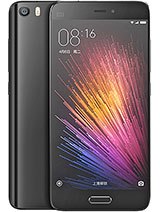
Welcome to Xiaomi’s high-end offerings in 2016. (Source: GSMArena)
It’s been said that the primary reason why smartphones are the way they are is due to computer manufacturers missing the boat on locking down the PC and Mac ecosystems back in the day, including the very hardware that the OS runs on. Unlike with installing a new OS on that old x86 or PowerPC-based system, smartphones – with very few exceptions – feature locked bootloaders and other obstacles designed to protect the children deter you from doing things with your own hardware that corporate disapproves of.
Consequently, getting LineageOS on the average smartphone is a bit of an ordeal, with my 2016-era Xiaomi Mi 5 being no exception. Fortunately Xiaomi does offer an official way to unlock the bootloader when you ask them nicely, so that was one of the first thing I did shortly after receiving my shiny new phone. This is also the first and most cumbersome step in the whole LineageOS installation procedure for the phone, so I’m grateful that I got that annoyance out of the way already.
This particular phone was left behind by Xiaomi in 2018, freezing it on Android 8.0 and consequently rendered it effectively useless for a wide range of apps as time moved on. Theoretically LineageOS would here bump the version up to Android 15, with regular OTA updates. I even had recently replaced its battery, which is still fairly easy on this era of smartphone, so it should be basically a brand new phone.
All I had to do now was follow the instructions.
Fast Fastboot Frustrations
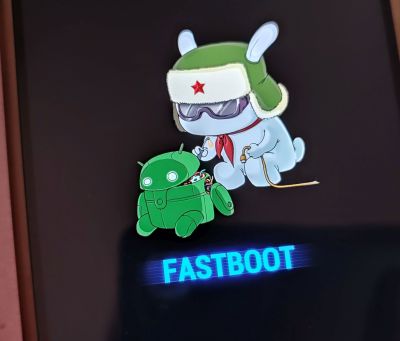
Welcome to the Xiaomi fastboot mode, comrade.
Unfortunately, after dutifully deleting all Google accounts on the phone and booting into Fastboot mode I ran into a seemingly unsurmountable obstacle:
fastboot devices listed zero devices and a quick look at the Device Manager in Windows showed why, with the Yellow Triangle of Meh.As it turns out, Xiaomi devices aren’t happy with the regular USB driver, but require a special Fastboot driver. This is where I’d spend the next few hours chasing a seemingly endless number of dead ends and useless advice. Rather than download sketchy driver installers or run some
.bat file from six years ago off a GitHub page, I went with the Xiaomi Mi Unlock Tool, the same that is used to unlock the bootloader.Here I ran around in circles for a bit with the version offered by Xiaomi being the ancient 6.x version without the needed driver and the update link being dead. Finally XDA Forums came to the rescue as usual, with someone having squirreled away a copy of the
.zip file from which I could extract the driver and install it.With this done the rest of the process was fairly easy, with the
fastboot command from my existing Android SDK installation happily pushing the recovery image to the phone, followed by rebooting into the LineageOS recovery mode by keeping the power and volume up buttons pressed until the Mi logo appears.Using
adb you then sideload the main LineageOS image after mashing the appropriate buttons on the phone to accept it, with me opting to also sideload the special Google apps sauce. A reboot later and before I knew it I was busy setting up the ‘new’ phone, copying data and settings off my newer Xiaomi Note 10 Pro phone via Wi-Fi.Mission success, with a 2016-era phone now running Android 15.
DIY Android TV
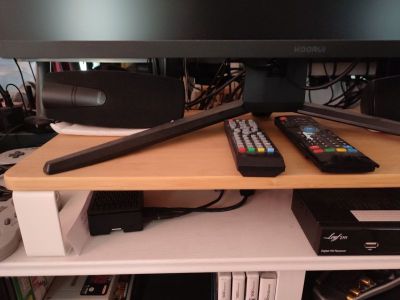
Welcome to the ‘black box’ Raspberry Pi 4B-based ‘smart TV’.
Of course, putting Android on phones is boring, with everyone and their dog doing it these days. Which is why long before I considered putting LineageOS on this phone of mine I had already put it on a Raspberry Pi 4 SBC that I had been trying to use for NymphCast receiver purposes in various guises over the years.
While this isn’t one of the officially supported devices by LineageOS, a wonderful person called Konga has ported LineageOS to the Raspberry Pi series of SBCs, both in their regular Android and Android TV versions.
The only real difference here is that Android TV uses the – shockingly – TV-optimized interface. This I installed in order to test whether the Android port of the NymphCast Server (NCS) would also play nice with Android TV. I had previously tried to use this SBC with regular Raspberry Pi OS and kin, but always ran into issues with the proprietary video hardware that requires custom patching of FFmpeg to work for basic features like hardware acceleration.
To my delight all of this, including video hardware decoding, worked out of the box, making it probably the most functional version of Linux that I have ever run on a Raspberry Pi board. Even if the RPi 4 isn’t your thing, there are also images for the RPi 3 and RPi 5, though I haven’t tried those yet. Android versions with this port are kept up to date, with the current release of Android 16 probably being something that I should update my board with.
Installation here is stupidly easy compared to the smartphone ordeal: simply write the image to an SD card, stick it into the SBC’s card slot and congratulations, you just installed LineageOS. You can even use the typical Android box-focused remotes to use them. I can recommend the ones that have a keyboard built-in to skip the on-screen keyboard. Or just wire up a full-sized keyboard, of course.
Updates are done via OTA images, which you have to flash by hand. This makes them more of an Over-SneakerNet (OSN) update system, but it works pretty much the same otherwise.
Welcome To Open Android
Coming from many years of using Huawai, Samsung, Xiaomi and Google’s interpretations of ‘Android’ I’m somewhat anxious to see what my LineageOS experience will be like. I’ll be using it as my regular phone, with ideally there being no difference from when I last used it back in the early 2020s, other than maybe being less awfully slow.
I do appreciate that I didn’t get strong-armed into inserting a SIM card to be even allowed to enable USB debugging, which I had to work around with my newest Xiaomi phone with a sneaky hack. This is where I feel that especially for us Android developers LineageOS can be incredibly useful.
On the ‘smart TV’ side of things, I haven’t really done too much with my little box other than cast video to it from a NAS like a DIY Netflix. I’d be up for exploring this setup as a proper alternative to OEM-blessed Android TV installations, though I imagine that apps that insist on DRM for precious streaming content will throw a fit.